From favourite photo to favourite pastime
How to make a colouring book from your photos
To make a colouring book from photos, choose clear images you have permission to use, turn them into line drawings, arrange the pages, then add a cover and print. You can do this yourself or use My Colouring Pad, with one private sample before checkout and a complete private proof after payment.
Before you start
Pick a small story
Choose a person, pet, celebration or set of shared memories. A mix of close-ups and adventures gives the book variety.
Gather your photos
My Colouring Pad accepts 1-25 photos per book. Use clear originals and check the character counter when choosing a short name or cover title.
Check photo permission
Use photos you have permission to use, including permission for the people shown. Read how we protect your photos.
Which photos make good colouring pages?
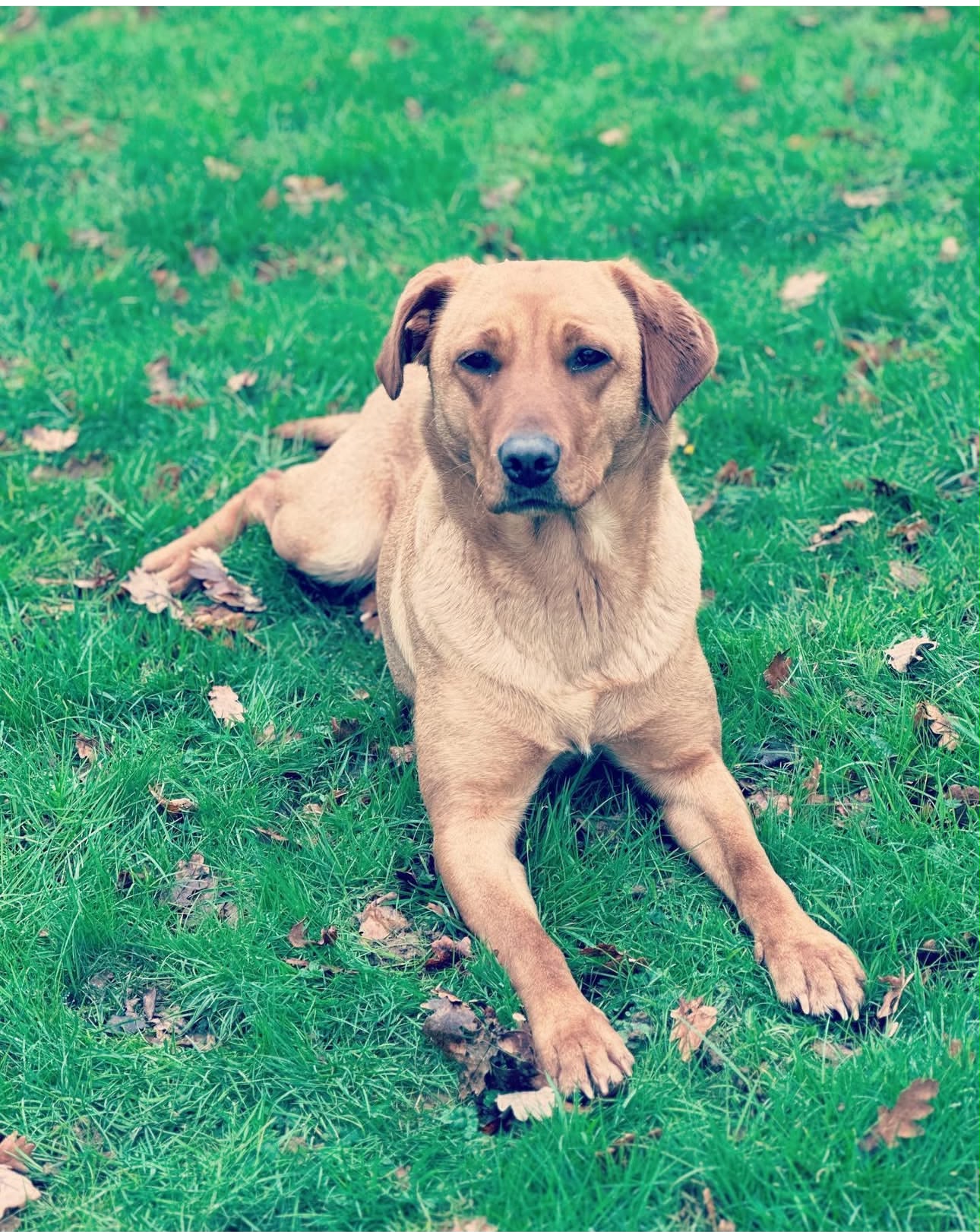
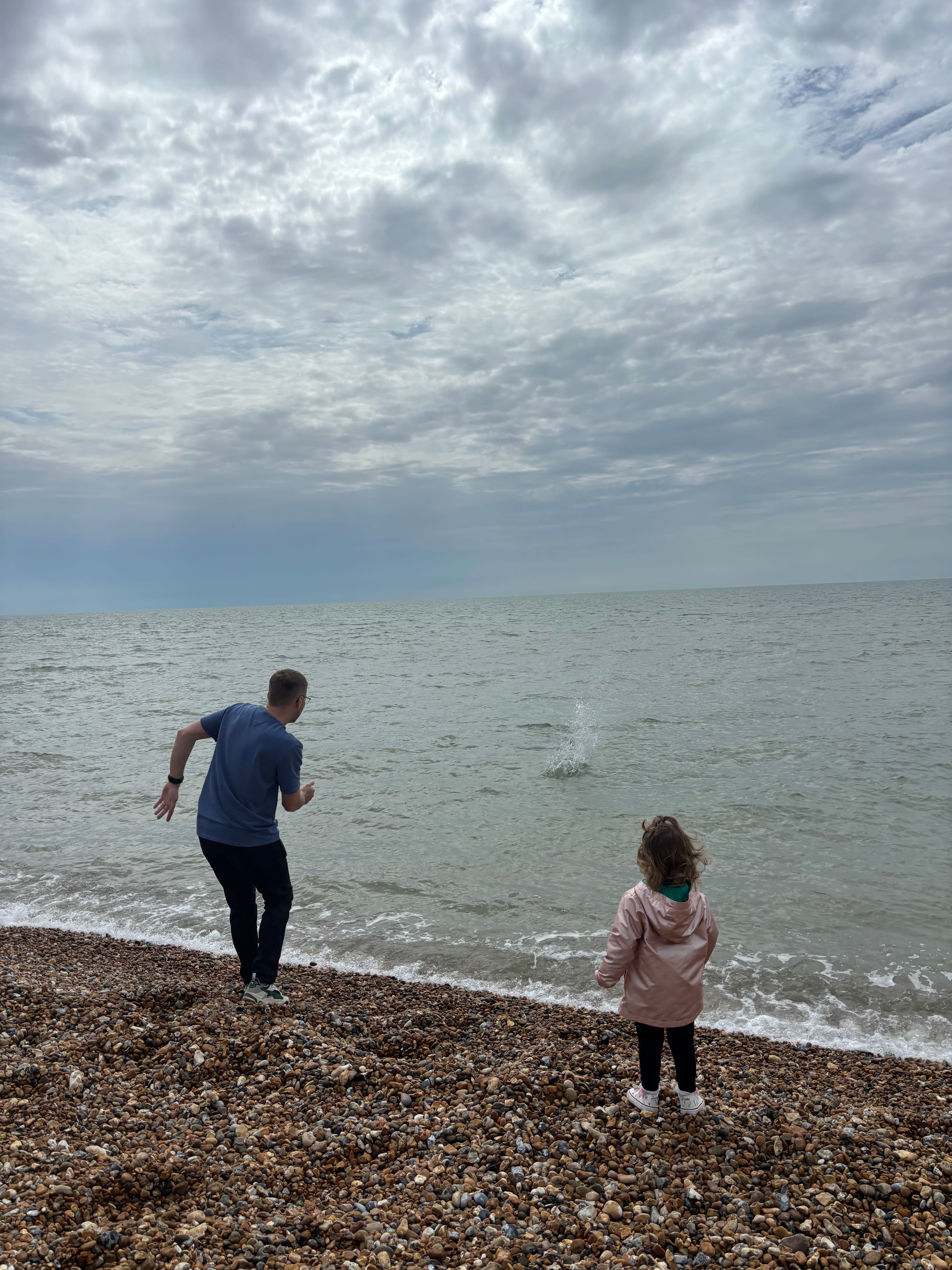
Choose a subject you can recognise before any conversion. Good light, a clear outline and visible expressions make it easier to keep the details that matter. A wide scene can work too, but a small face in the distance gives the drawing less detail to work with.
A clear, close subject
A wider scene tells a story
Avoid very dark, blurred or heavily filtered images. Check that important faces, ears, hands and favourite details are visible. Compare original photos with their colouring-page drawings before choosing your own.
Your screen, step by step
Make your book with My Colouring Pad
Follow the four screens in the creator. Choose the view that looks like your device - you can switch at any time.
-
Step 1 · Desktop
Add a name and choose a cover
Open the creator, enter a name or short title and choose a cover design. The preview updates as you go. For a title such as Our Wedding, select the option to use the words exactly as entered, without adding ’s.
You can return to change the name or cover before checkout.
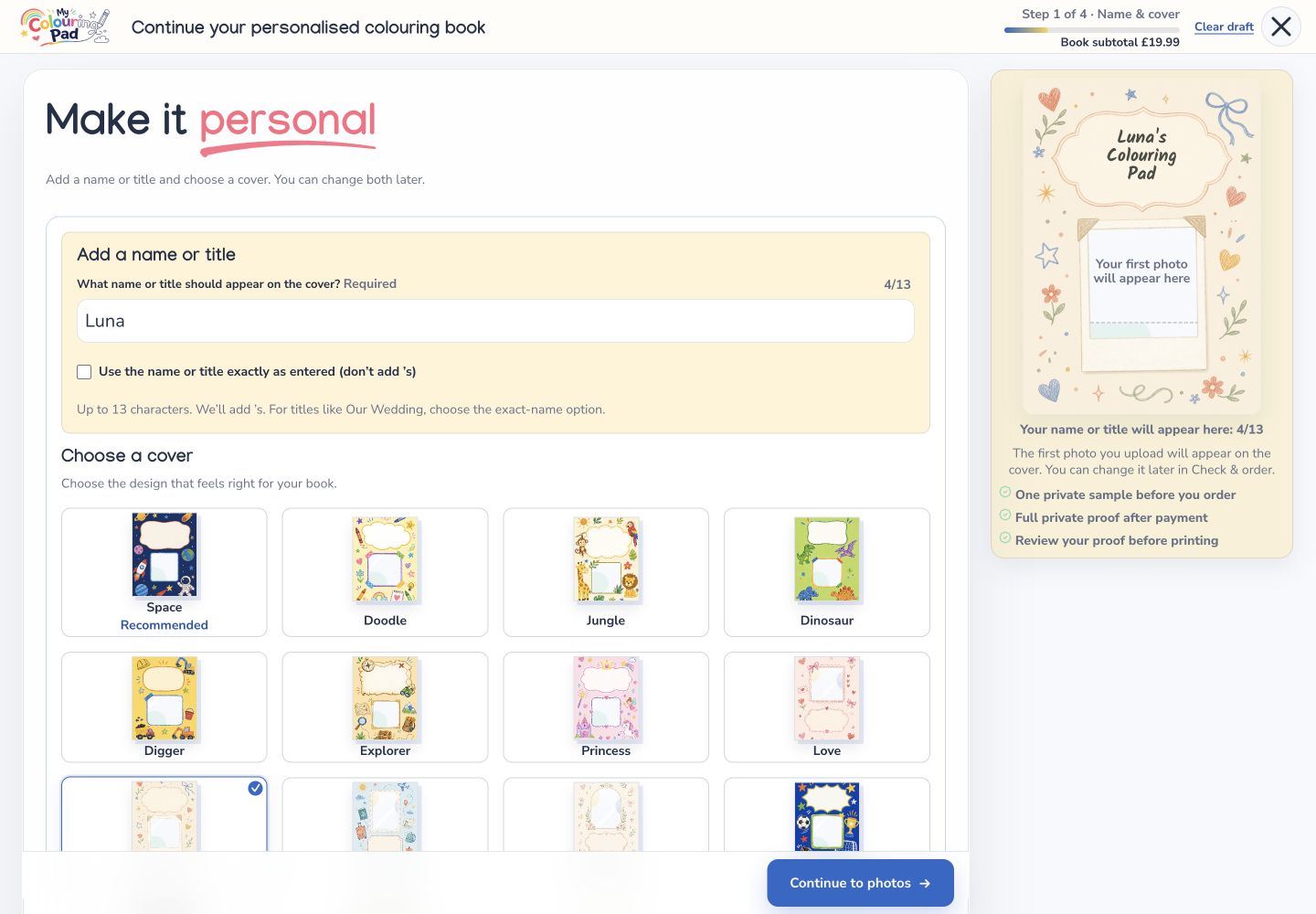
- 1. Enter a name or title
- 2. Choose a cover
Tap the screenshot to open the full-size view.
-
Step 2 · Desktop
Upload your photos and confirm permission
Add 1-25 photos, wait for them to finish saving and check the thumbnails. Confirm that you have permission to use the photos; this starts the one private sample automatically. Use Add more photos for another image, or the three-dot menu to remove an image from this book.
Removing a photo from the book is different from deleting it from your saved photos.
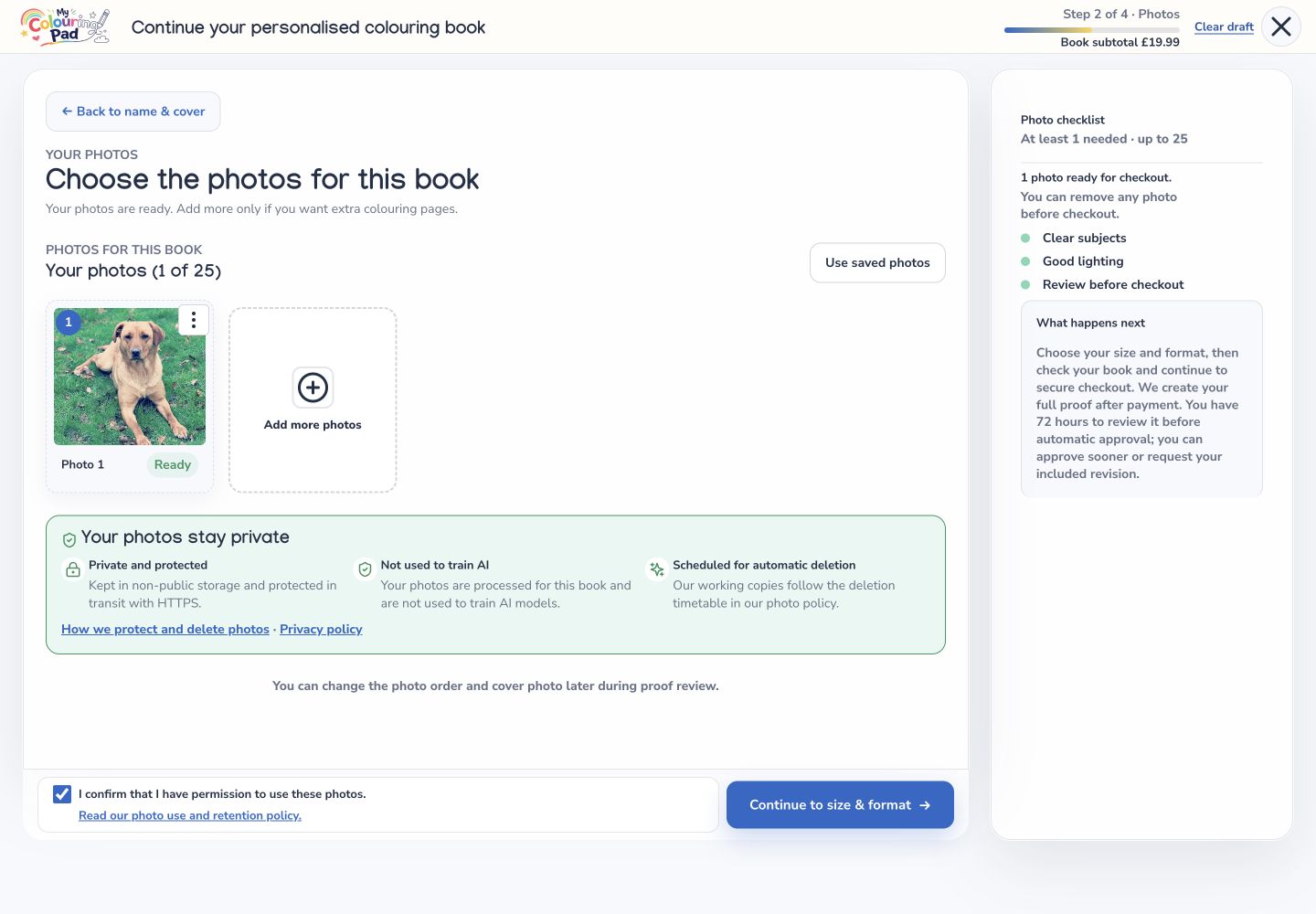
- 1. Add another photo
- 2. Confirm photo permission
Tap the screenshot to open the full-size view.
-
Step 3 · Desktop
Choose A5, A4 or a printable PDF
Choose a compact A5 gift book, a larger A4 colouring book or a digital PDF to print at home. Check the current price and continue to Check & order. Printed-book delivery is calculated at checkout; a PDF has no physical delivery charge.
On a phone, scroll through the format choices to compare all three.
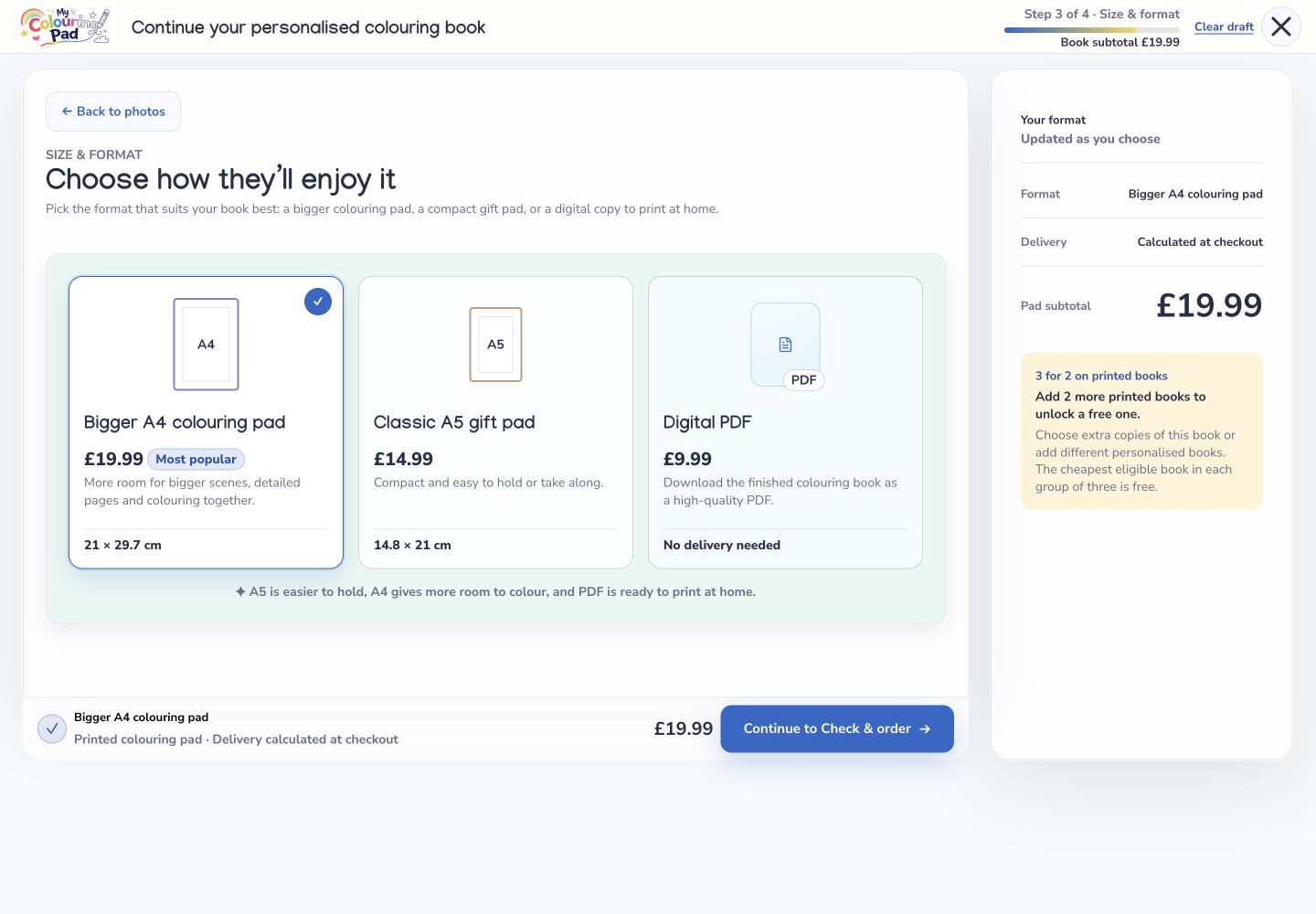
- 1. Compare formats
- 2. Continue to review
Tap the screenshot to open the full-size view.
-
Step 4 · Desktop
Check your book and review the sample
Review your cover, selected photos, format and number of copies. Use the pad preview arrows to move from the cover to your photo and its sample colouring page once it is ready. Check the result, read the proof-review policy and confirm it when you are ready to continue to secure checkout.
The complete book is created after payment. The sample is one page, not the complete proof.
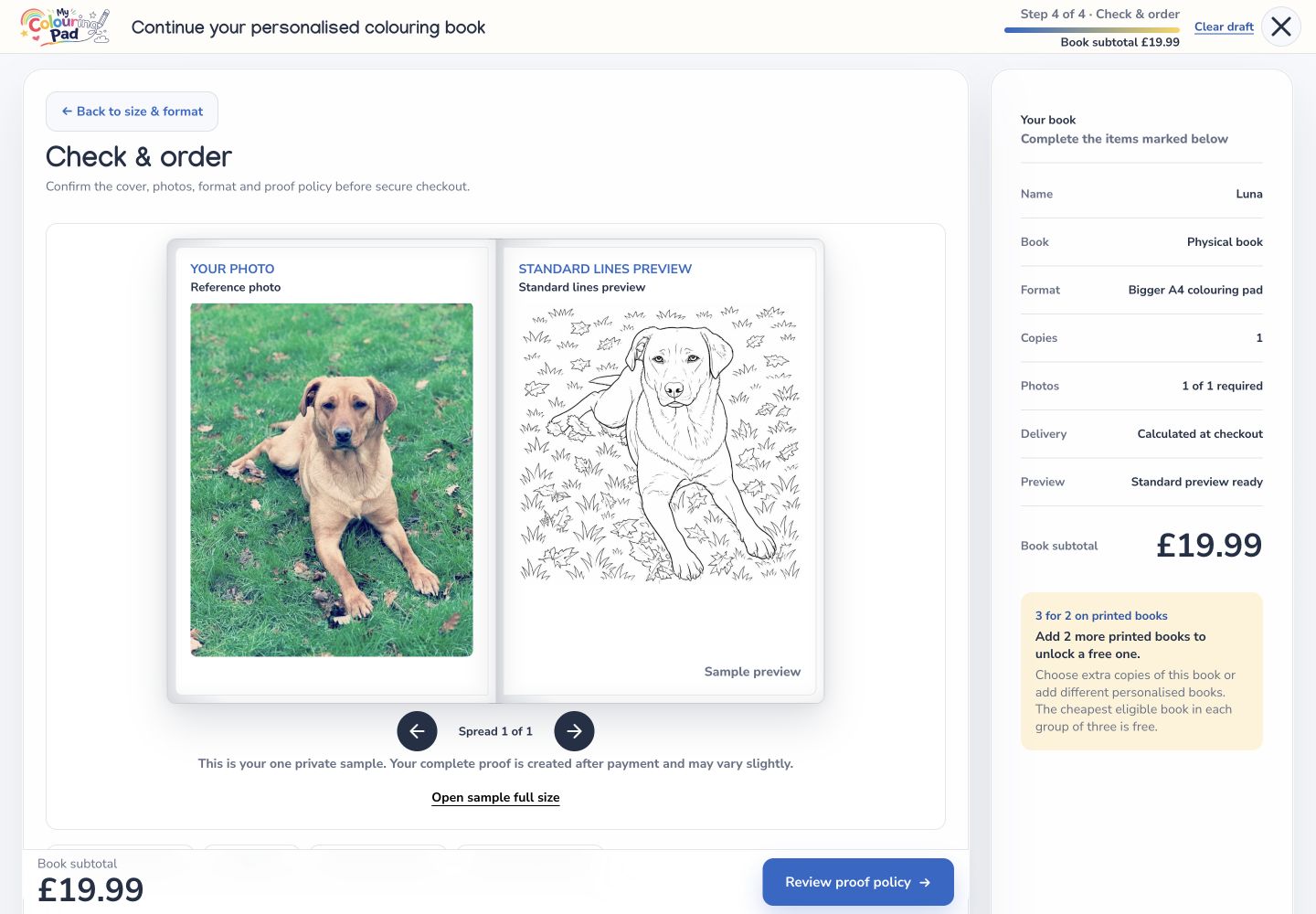
- 1. View inside pages
- 2. Open the sample full size
Tap the screenshot to open the full-size view.
-
Step 1 · Mobile
Add a name and choose a cover
Open the creator, enter a name or short title and choose a cover design. The preview updates as you go. For a title such as Our Wedding, select the option to use the words exactly as entered, without adding ’s.
You can return to change the name or cover before checkout.
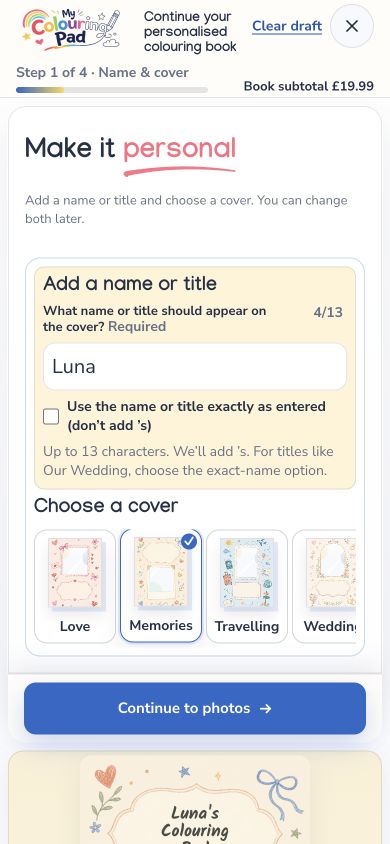
- 1. Enter a name or title
- 2. Choose a cover
Tap the screenshot to open the full-size view.
-
Step 2 · Mobile
Upload your photos and confirm permission
Add 1-25 photos, wait for them to finish saving and check the thumbnails. Confirm that you have permission to use the photos; this starts the one private sample automatically. Use Add more photos for another image, or the three-dot menu to remove an image from this book.
Removing a photo from the book is different from deleting it from your saved photos.
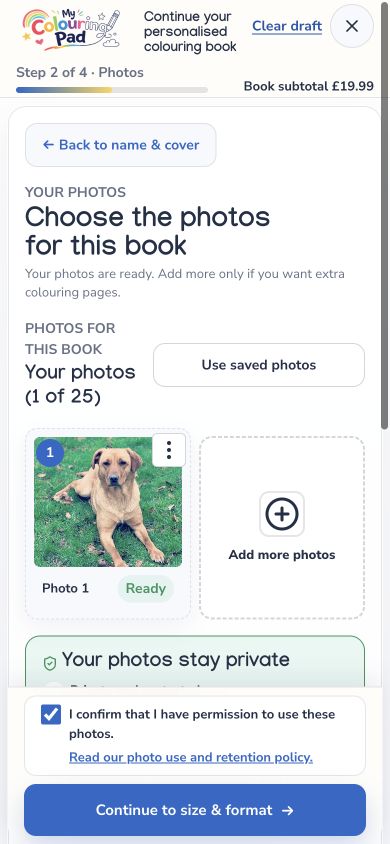
- 1. Add another photo
- 2. Confirm photo permission
Tap the screenshot to open the full-size view.
-
Step 3 · Mobile
Choose A5, A4 or a printable PDF
Choose a compact A5 gift book, a larger A4 colouring book or a digital PDF to print at home. Check the current price and continue to Check & order. Printed-book delivery is calculated at checkout; a PDF has no physical delivery charge.
On a phone, scroll through the format choices to compare all three.
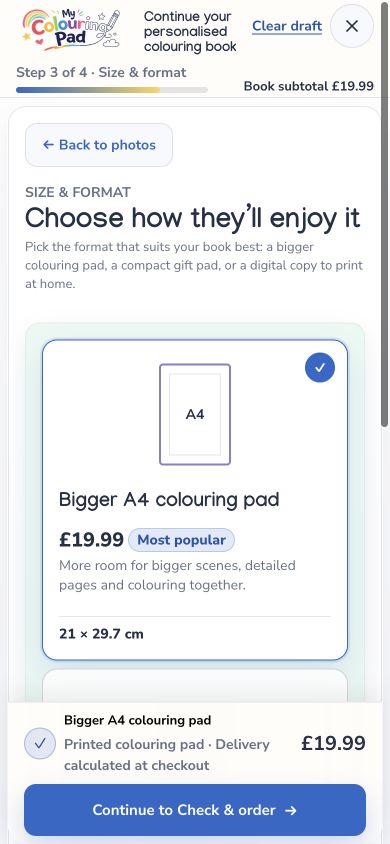
- 1. Compare formats
- 2. Continue to review
Tap the screenshot to open the full-size view.
-
Step 4 · Mobile
Check your book and review the sample
Review your cover, selected photos, format and number of copies. Use the pad preview arrows to move from the cover to your photo and its sample colouring page once it is ready. Check the result, read the proof-review policy and confirm it when you are ready to continue to secure checkout.
The complete book is created after payment. The sample is one page, not the complete proof.
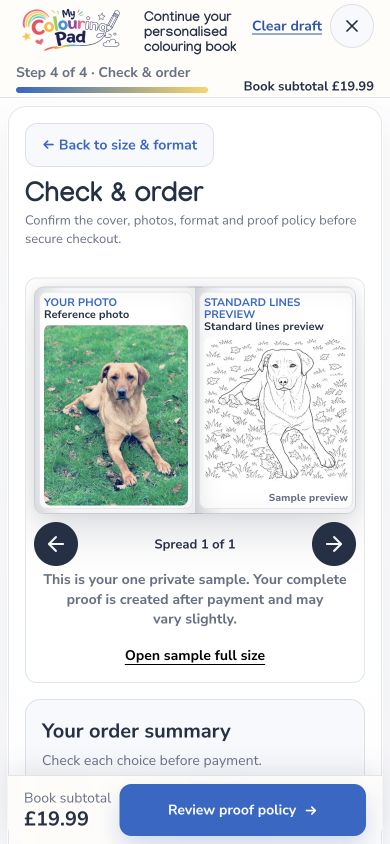
- 1. View inside pages
- 2. Open the sample full size
Tap the screenshot to open the full-size view.
Screenshots use a demonstration book and were captured on 20 October 2026. Prices and offers can change; check the current total in the creator and at checkout.
What happens after checkout?
The sample is one transformed photo. The complete colouring book and its private proof are created only after payment is confirmed.
1. Receive your private proof
We email your private link when the complete book is ready. Review every page, including the cover, photo choices and drawings.
2. Review within 72 hours
One book-wide revision round is included. Submit all requested changes together before approval. Complete valid proofs can be approved automatically after the 72-hour review window under the policy shown at checkout.
3. Approve, then colour
Printed books go to print after approval; a finished PDF is prepared for download. Printed-book delivery estimates run from order and include the proof stage.
Read the complete buying and proof journey or check current UK printing and delivery information.
Should you make it yourself or use a printed-book service?
Both routes begin with the same choices: recognisable photos, clear drawings and a page order that makes sense. The difference is who prepares and prints the finished book.
See the personalised photo colouring book specification and compare current formats and prices. Printed-book delivery is currently UK only.
Quick answers
Can I make the book on my phone?
Yes. The mobile creator has the same four stages: name and cover, photos, size and format, then Check & order. Choose the Mobile tab above for screenshots, or switch to Desktop if you are helping someone on a computer.
When does my sample appear?
After your first photo is saved and you confirm photo permission, the creator starts one private sample automatically. It may still be processing while you choose your format. In Check & order, use the pad arrows to see the inside photo and the sample when it is ready. You can continue to checkout while it finishes.
Do I see every colouring page before paying?
No. One private sample is available before checkout. The remaining colouring pages and the complete private proof are created after payment. You review that proof before printing, with one book-wide revision round included.
Are 25 photos the same as 25 book pages?
No. Photos and total book pages are different. A printed book places each original photo opposite its drawing and includes front matter and blank drawing pages. Printed books have at least 32 interior pages; adding fewer photos does not remove that minimum.
Made from your memories
Ready to make a book from your photos?
Start with a cover and a favourite photo. Your complete private proof comes after payment.